
Everyday use
Startup and Automount: three separate switches.
What happens after you log in is controlled in three places: macOS starts the app, a target connects automatically and Automount presents a specific LUN or mounts a volume. Turn on only what you really need.
The three switches
| Switch | Where | Effect |
|---|---|---|
| Start app at login | Settings → General → Startup & Quit | macOS starts iSCSI4NAS after you log in. |
| Auto-connect target | Targets → Network → Behavior | This saved target connects at app launch. |
| Automount | Automount → Add… | A specific LUN is attached as a disk or a volume is mounted under /Volumes/. |
For a volume right after login you need the app launch and an Automount rule. The Automount rule connects its target itself. Auto-connect at app launch is meant for targets that should connect without an Automount rule.
1. Start the app at login
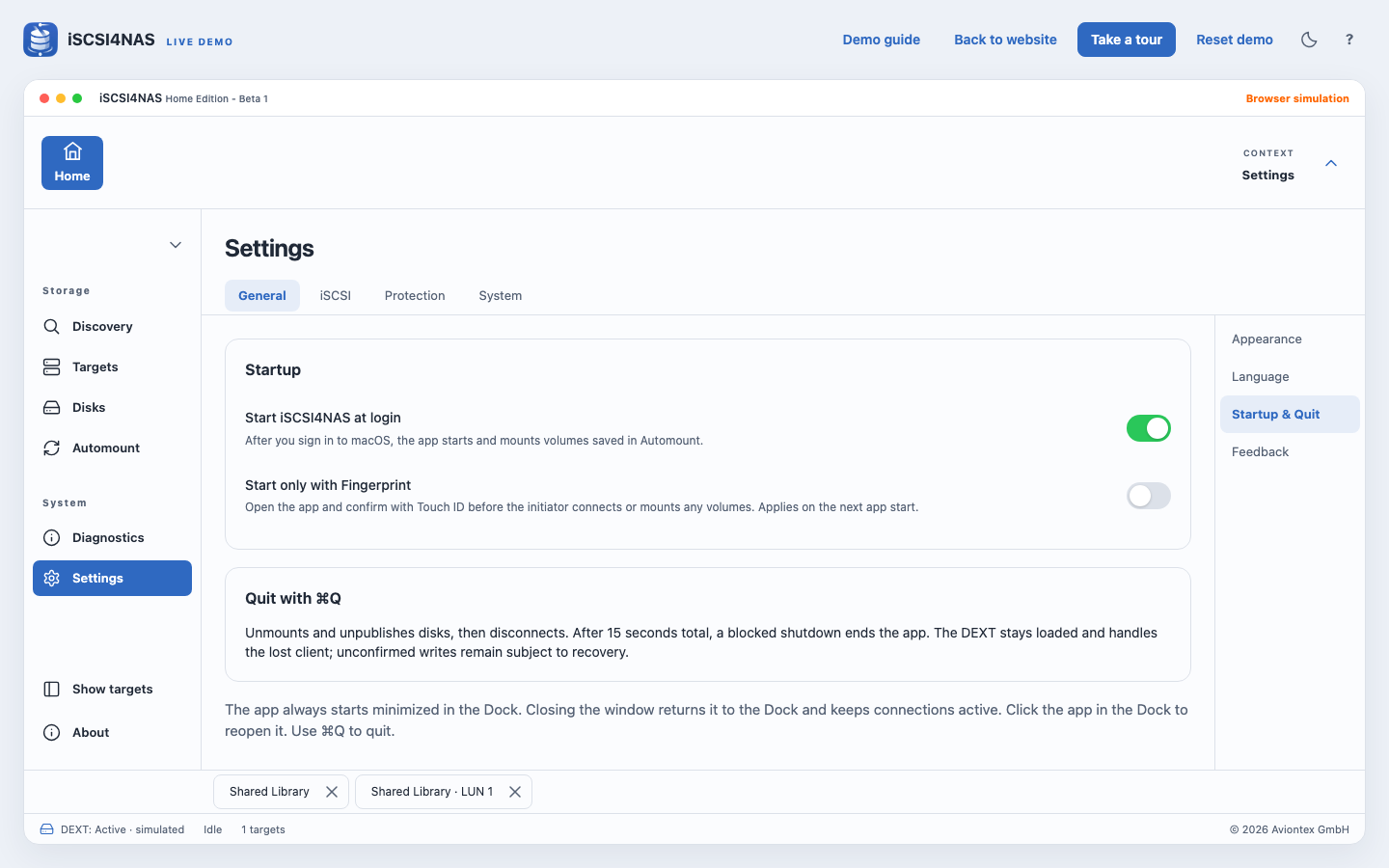
Open Settings → General → Startup & Quit and turn on Start iSCSI4NAS at login. If macOS asks for login item approval, confirm it in System Settings.
You can also turn on Require authentication at startup. The app then waits for Touch ID or your login password before the first connection.
2. Set the target connection
Select a saved target and open Network → Behavior. There are two switches:
- Auto-connect at app launch connects this target when the app starts.
- Reconnect after connection loss reconnects after a short interruption such as a brief Wi-Fi dropout. A target you unmount or disconnect yourself stays that way until you mount it again.
Both switches apply per target. With several targets, set each one. A connected target attaches the LUN as a disk. The volume in Finder comes with Mount or an Automount rule.
3. Add a LUN or volume to Automount
- Mount the target manually once. This lets iSCSI4NAS learn the available LUNs and volumes.
- Open Automount → Add… and choose the volume or LUN you want. If the entry is missing, mount the target and click Refresh.
- For a LUN the app later connects the target and attaches exactly this LUN as a disk. For a volume you also set the name under
/Volumes/. - Save. The rule applies from the next app launch.

If you choose the LUN, iSCSI4NAS presents the disk and macOS mounts an existing file system at its own discretion. If you choose the volume, you get a fixed mount point under /Volumes/. For backups and scripts the volume is the better choice.
If you unmount or disconnect a LUN yourself, Automount skips its entry and shows Paused · unmounted manually. Mount it once and Automount takes over again.
Check after the next login
Go through these five questions in order. The first answer that does not fit shows you where to look:
- Is the app running?
- Does Automount show the entry without Paused?
- Is the target connected?
- Is the LUN listed under Disks?
- Is the volume mounted in Finder?