Getting started · Step 2
Approve the driver.
iSCSI4NAS ships its own DriverKit driver. It is called Driver Extension or DEXT for short. You install it in the app, turn it on once in macOS and restart your Mac. Four steps.
1. Install the driver
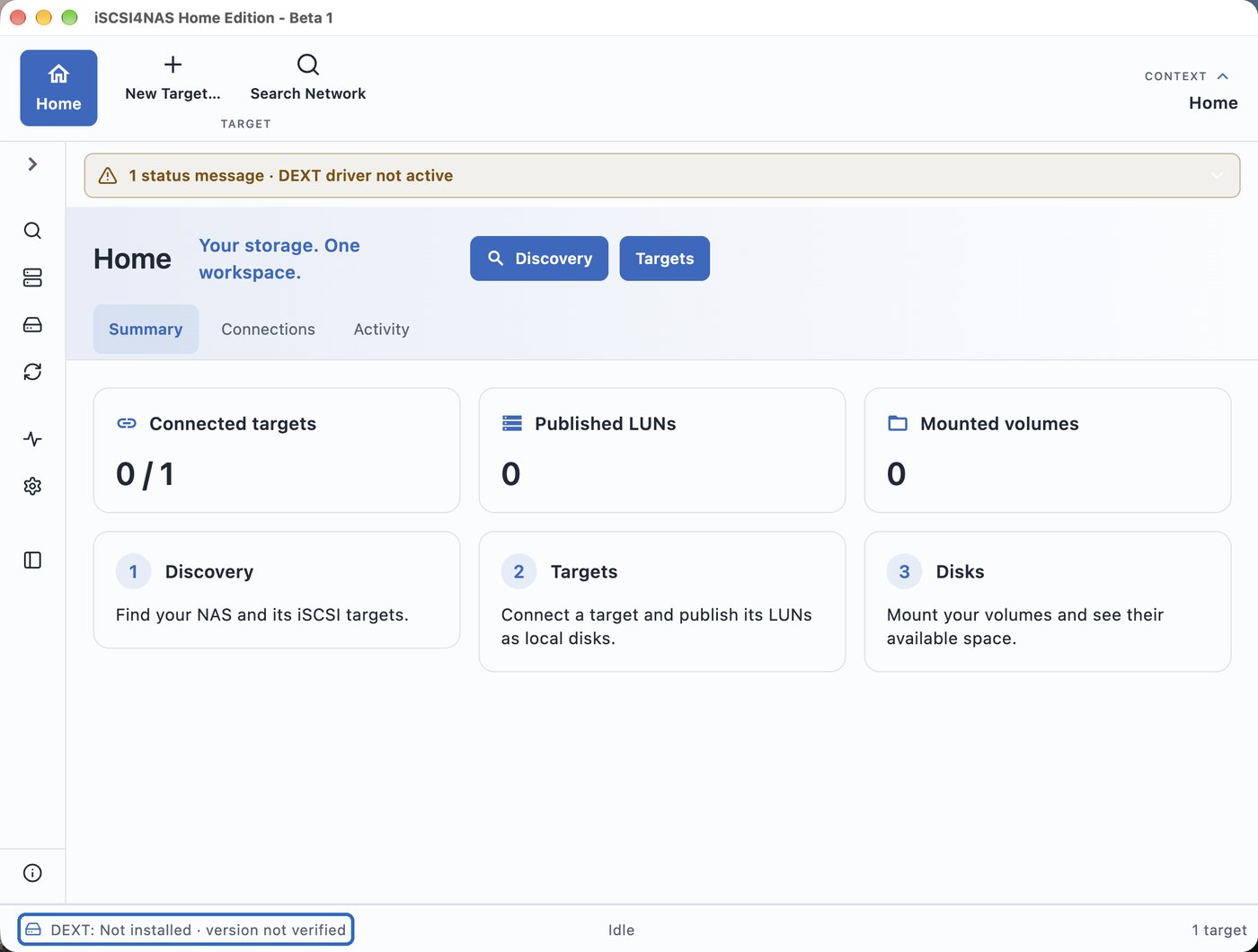
On first launch the app shows DEXT driver not active at the top and DEXT: Not installed at the bottom left.
Click DEXT: Not installed at the bottom left. The app opens driver management under Settings → System → Management. Click Install DEXT there. Keep the app open until macOS responds.

2. Open System Settings
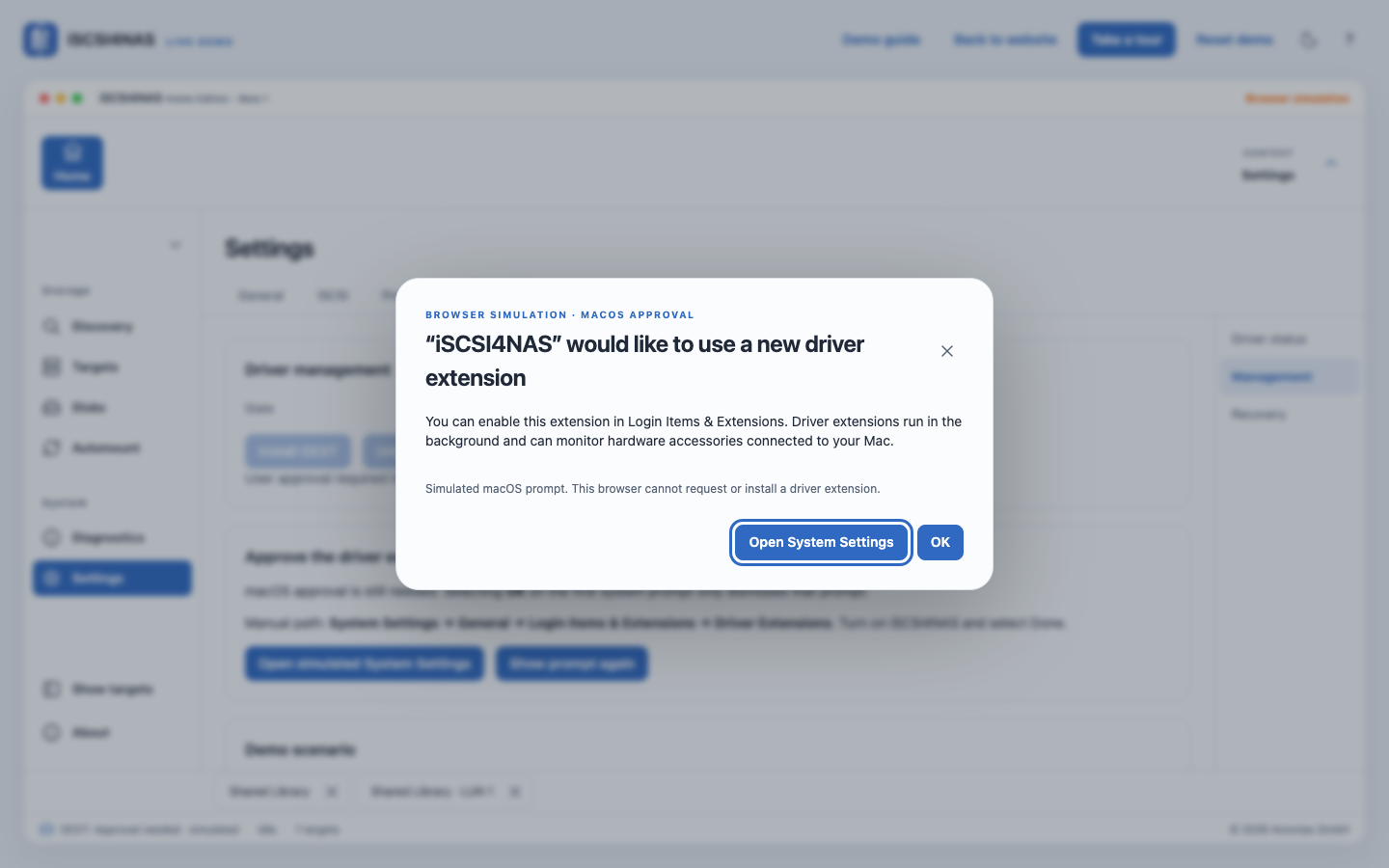
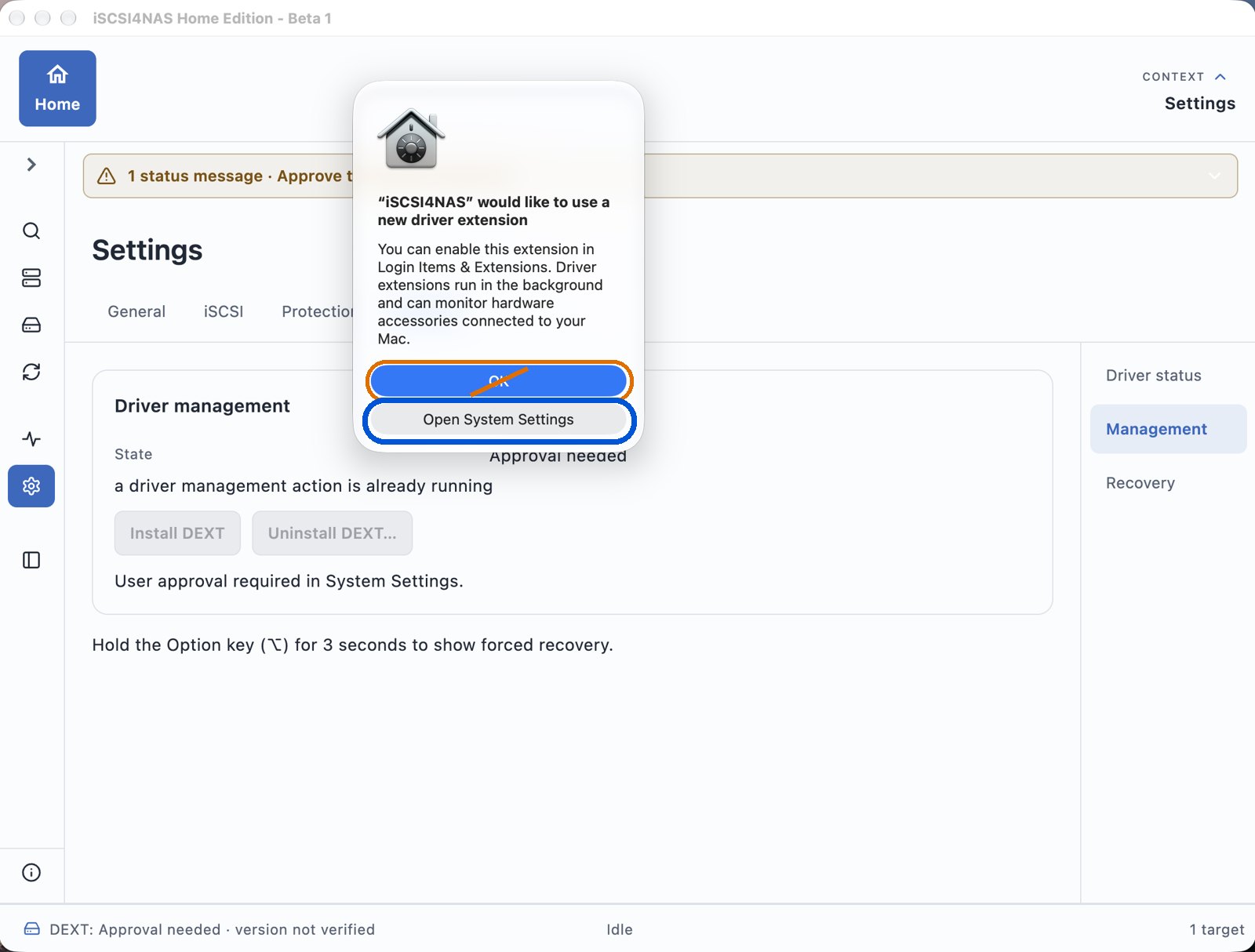
macOS reports: “iSCSI4NAS” would like to use a new driver extension.
Click Open System Settings. System Settings opens right at the correct place.
macOS highlights “OK” in blue. That button only closes the dialog and the driver stays off. The right way is Open System Settings.
3. Turn the driver on
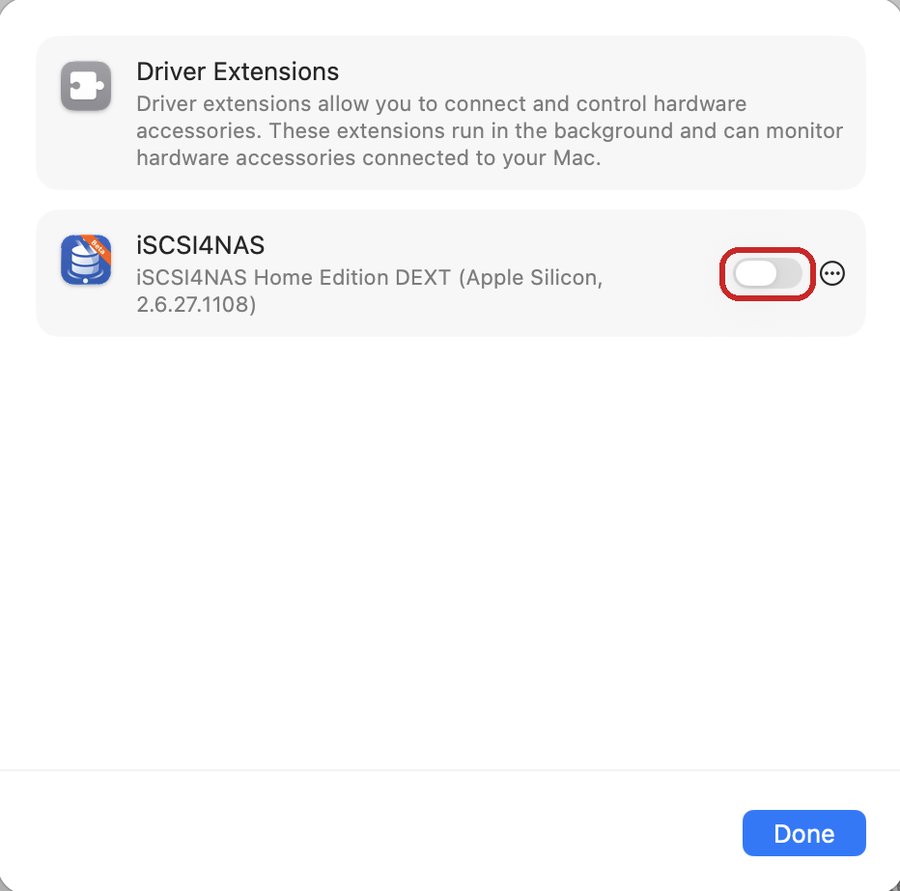
You see the Driver Extensions list with the entry iSCSI4NAS. Switch iSCSI4NAS on and confirm with Done. Then switch back to the app.
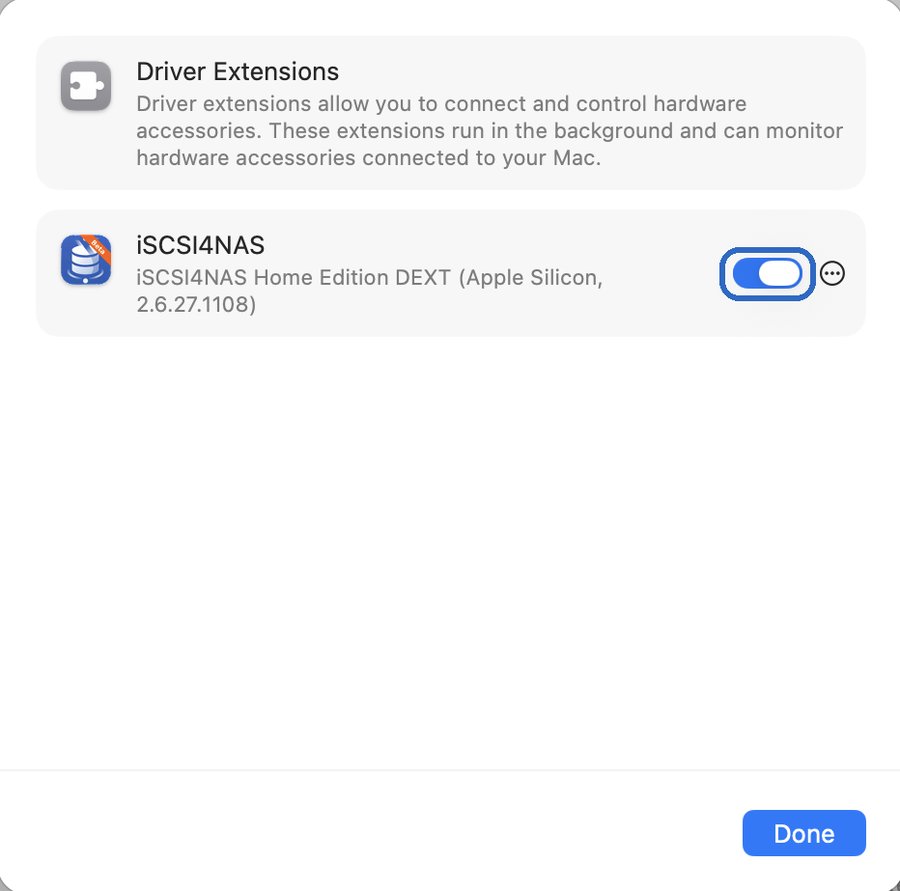
Where to find it in System Settings
If System Settings does not open by itself, the approval is here:
| macOS | Path |
|---|---|
| macOS 15 Sequoia and later | System Settings → General → Login Items & Extensions. At the very bottom click the (i) next to Driver Extensions. Switch iSCSI4NAS on and confirm with Done. |
| macOS 13 Ventura and 14 Sonoma (Intel) | System Settings → Privacy & Security. Under Security you see a notice about system software from iSCSI4NAS. Click Allow there. |
4. Restart your Mac
The app now shows DEXT: Restart required. Save your work in other apps and click Reboot now.
macOS loads a new driver with the next restart. That applies to every driver change and so to every update that brings a new driver.
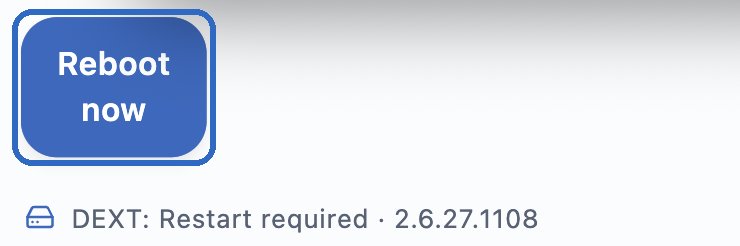
After the restart the bottom left shows DEXT: Active. Settings → System → Driver status shows the details. Re-check driver queries the state again at any time. Next up: your first target.
Clicked “OK” anyway?
No problem. Open the path from the table in step 3 yourself, switch iSCSI4NAS on and restart your Mac. Click Install DEXT again only if the app still shows DEXT: Not installed.
The status line at the bottom left always shows where you are. Clicking it opens driver management.
Practise in the demo
In the live demo you can walk through the approval with no effect on your Mac. Open Settings → System → Management there and choose Start approval walkthrough. “OK” leaves the approval pending. “Open System Settings” leads to the simulated extension list.